
How to edit a PDF on Windows for free
Three ways on Windows 10 and 11: Edge, Word, and FileHook in the browser. Edge and FileHook are free. Pick by the job. Only one of them changes the text and keeps the layout as it was.
The short answer
To highlight, draw, add a note or fill in a simple form, open the PDF in Microsoft Edge. It is already on the PC.
To change text that is already in the PDF, Edge has no tool for it. Word can open a PDF, but it converts the file into a Word document first, and Microsoft says the result might not match the original page for page. To fix the text and keep the layout, open the PDF in FileHook in any browser, click the line, and type. It is free for 10 finished files a day, with no install and no admin password.
Route 1: Microsoft Edge (free, already on Windows)
Best for reading, highlighting, quick notes and simple forms.
- Right click the PDF, choose Open with, then Microsoft Edge.
- To highlight, select the text, right click, choose Highlight and pick a color.
- To leave a note, select text, right click and choose Add Comment.
- To write or sign by hand, pick Draw in the PDF toolbar.
- To fill in a form, click a field and type. Forms built on the old XFA format do not work in Edge.
- Click Save in the toolbar to keep the changes.
Where it stops: Microsoft's feature list for the Edge PDF reader has no tool for changing existing text, deleting or reordering pages, or merging files.
Route 2: FileHook in any browser (free, edits the real text)
Best when words already in the PDF need to change. Works on a locked-down work laptop because nothing installs.
- Open filehook.app/edit-pdf in Edge, Chrome, Firefox or Brave.
- Drag the PDF onto the page. It opens in the tab. A plain edit does not upload the file.
- Click the line you want to change and type over it. The editor reuses the document's own font and text color.
- Use the top bar for the rest: Text, Sign, Whiteout, Annotate, and Pages for rotating, duplicating, deleting or inserting a page.
- Click Download. The finished PDF lands in your Downloads folder with no watermark.
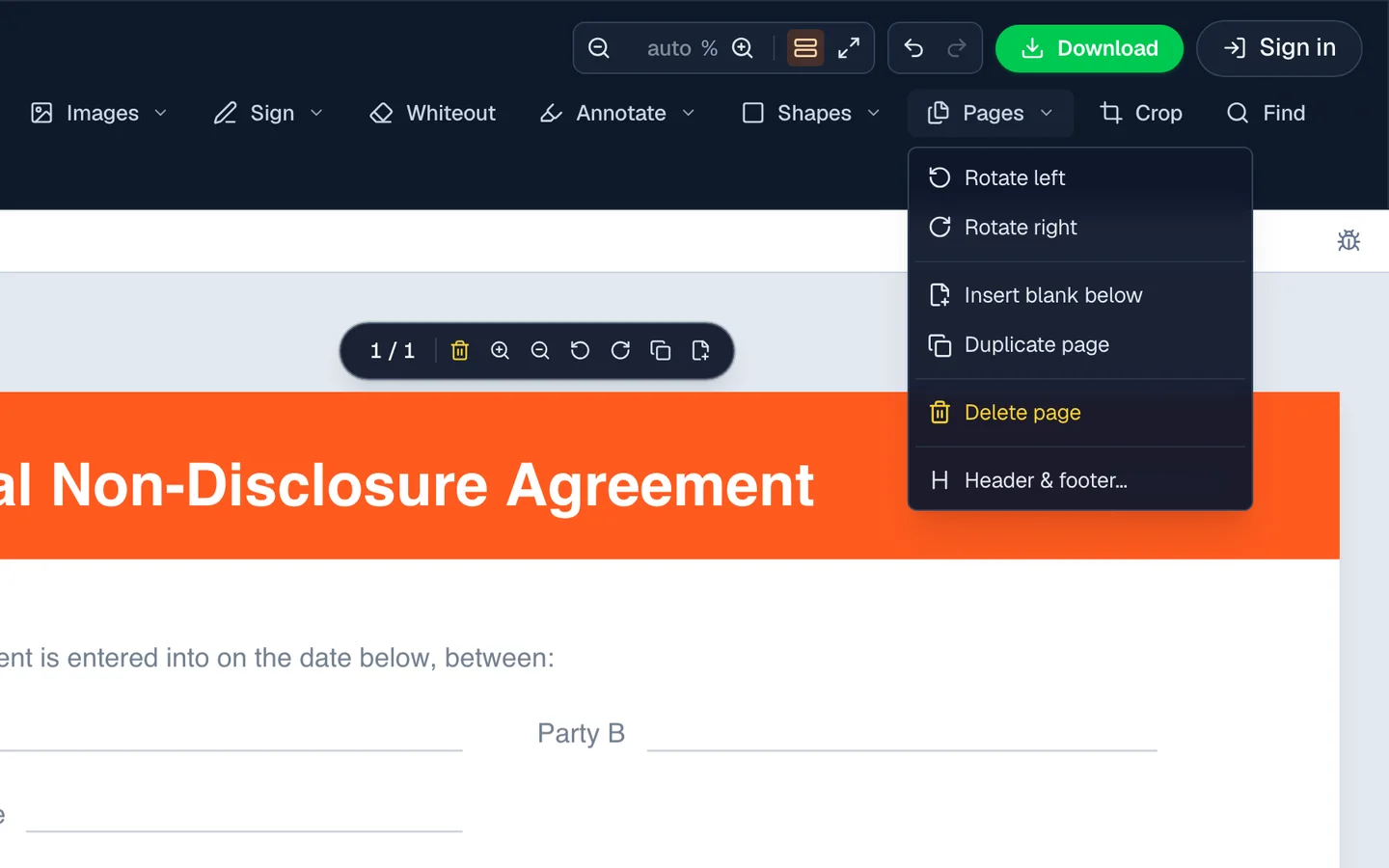
Where it stops: the free plan is 10 finished files a day and 50 MB per file. Reading the text off a scanned page inside the editor is a Pro feature ($3.99 a month or $29.99 a year).
Open the free PDF editorEdge vs Word vs FileHook
The Edge and Word columns follow Microsoft's own help pages. The FileHook column is what the editor does today.
- Change text already in the PDF
- Edge:
- No
- Word:
- Yes, after converting it to a Word file
- FileHook:
- Yes. Click the line and type
- Keeps the original layout
- Edge:
- Yes
- Word:
- Not always. Works best when the PDF is mostly text
- FileHook:
- Yes
- Highlight and add notes
- Edge:
- Yes
- Word:
- After converting
- FileHook:
- Yes
- Fill in a form
- Edge:
- Yes, basic forms
- Word:
- Not as a PDF form
- FileHook:
- Yes
- Delete, rotate or add pages
- Edge:
- No
- Word:
- After converting
- FileHook:
- Yes
- Needs an install or a license
- Edge:
- No
- Word:
- Yes, Microsoft Word
- FileHook:
- No
- Price
- Edge:
- Free
- Word:
- Paid, part of Microsoft 365 or Office
- FileHook:
- Free for 10 files a day. Pro is $3.99 a month
| Job | Edge | Word | FileHook |
|---|---|---|---|
| Change text already in the PDF | No | Yes, after converting it to a Word file | Yes. Click the line and type |
| Keeps the original layout | Yes | Not always. Works best when the PDF is mostly text | Yes |
| Highlight and add notes | Yes | After converting | Yes |
| Fill in a form | Yes, basic forms | Not as a PDF form | Yes |
| Delete, rotate or add pages | No | After converting | Yes |
| Needs an install or a license | No | Yes, Microsoft Word | No |
| Price | Free | Paid, part of Microsoft 365 or Office | Free for 10 files a day. Pro is $3.99 a month |
If you still have the Word file the PDF was made from, edit that and export it again. That beats every route on this page.
Edge opens your PDFs and stops just short of editing
On Windows 10 and 11, Edge is the default PDF handler unless another app grabbed the file type. As a reader it is good: highlight, draw with the pen, fill in real form fields, drop a text box, read the page aloud.
The wall is the same one Preview hits on the Mac. Edge cannot change a word that is already printed on the page. Its Add text tool floats a new box over the document rather than opening the text underneath. It also will not delete a page, reorder pages, or merge two files. For anything past markup you need something else, and that is usually where the search for an editor starts.
Microsoft Print to PDF is a creator, not an editor
Windows ships a virtual printer. Press Control P in any app, choose Microsoft Print to PDF, and you get a PDF of whatever was on the page. For turning a web page, an email or a spreadsheet into a PDF it is the fastest thing on the machine.
Running an existing PDF back through it changes nothing you wanted changed. You get a fresh copy of the same pages, minus the form fields and clickable links, with the wrong sentence still sitting there. Plenty of people try this first and conclude PDFs are simply not editable.
The managed work laptop problem
Acrobat wants an installer and an administrator password. On a corporate or school Windows machine you have neither, the Microsoft Store is often switched off too, and the answer to a software request is a ticket and a two week wait.
A web page needs none of that. No install, no admin rights, no license key, no software inventory entry, and nothing left on the disk when you close the tab. It behaves the same on a locked-down Dell issued by IT as on your own laptop at home.
If you still have the Word file, edit that instead
When the PDF came out of a Word document you still own, going back to the source is the cleanest route every time. Edit the .docx, then use Save as PDF or Export, Create PDF/XPS. Nothing is guessed because nothing is being reverse engineered.
Opening the PDF in Word is a different thing and it is worth knowing what it does. Word rebuilds a brand new document from the PDF, and Microsoft says up front that the result may not look like the original. In practice tables split, columns collapse, spacing shifts, headers become floating text boxes and line breaks land in odd places. Fine for a plain one-column letter. Painful for anything designed. Editing the PDF directly avoids the rebuild entirely.
How to edit a PDF on Windows in the browser
Open FileHook in Edge, Chrome, Firefox or Brave. Drag the PDF onto the upload card, or click it and browse to the file. Click the line you want changed and type over it. The rest of the toolbar sits down the side: add text, whiteout, form fields, signatures, highlights, shapes, images, links, and page moves. Click Download when the document reads the way it should. Everything is built in the tab, so there is no upload wait and no queue.
Where the finished file lands
Edge and Chrome both default to C:\Users\yourname\Downloads and pop a downloads flyout at the top right. Two things to watch on a work machine. Some organisations redirect the Downloads folder into OneDrive, so the edited PDF syncs to the company cloud the moment it saves. And some browser policies force a Save As prompt instead of a silent download. Neither breaks anything, but if you are editing something you would rather keep local, check where Downloads actually points first.
Every Windows browser behaves the same here
Edge, Chrome, Brave, Opera and Vivaldi are all Chromium underneath, and Firefox implements the same file APIs. There is no plugin, no ActiveX leftover, and no browser that gets a better version. The only real requirement is a browser that has been updated in the last year or two. Windows 10 and Windows 11 make no difference at all, because the work happens inside the browser rather than in the OS.
What leaves the PC, and what the free plan covers
For a plain edit, nothing leaves it. The PDF is read into the browser tab from your own drive, the changes happen there, and the finished file is assembled there too. No account, no email, and no analytics on what your document says. The one deliberate exception is the Share button, which uploads the finished PDF so someone can open a link, and an anonymous share deletes itself after two hours. Free use runs to 10 finished files a day across every tool here, resetting at midnight UTC, with a 50 MB ceiling per file. Honest limit: because your own PC renders the pages, an old machine with 8 GB of shared memory takes its time on a large scanned document.
FAQ
Does it work without admin rights on Windows?
It does, because nothing installs. A managed laptop that blocks every .exe still runs a web page, so there is no IT ticket in the way and nothing added to the machine.
Can Microsoft Edge edit PDF text?
Edge highlights, draws, fills form fields and adds a text box on top, but it cannot change text that is already in the document. Its Add text tool creates a new box rather than opening the existing line.
What is the best free PDF editor for Windows 11 with no download?
Anything that runs in the browser avoids the download question entirely. FileHook edits the real text, keeps the layout, exports with no watermark, and costs nothing for the first 10 finished files each day.
Should I open the PDF in Word instead?
Only if the document is plain. Word rebuilds the PDF as a new Word file, and Microsoft warns the result may not match the original. Anything with columns, tables or a designed header usually comes out shifted.
Where does the edited PDF save?
Your browser's Downloads folder, normally C:\Users\yourname\Downloads. On a work machine that folder is sometimes redirected into OneDrive, which means the file syncs as soon as it saves.
Does Microsoft Print to PDF let me change a PDF?
It makes new PDFs rather than editing existing ones. Printing a PDF to PDF gives you the same pages again, with form fields and links stripped out.