How do I sign a PDF on my phone without printing it?
Stop printing PDFs just to sign them. Sign on your phone instead.
Open FileHook in your phone browser, add the PDF, tap Edit, then tap the pen icon. Type or draw your name, drag it onto the line, and download.
You do not need a printer, a scanner or an app. It takes about a minute.
The form is due today and you are nowhere near a printer. Print, sign, photograph, blur: nobody has time for that. Your phone can do the whole thing, and this is how.
6 steps and you are done
Open the PDF right on your phone, no app needed
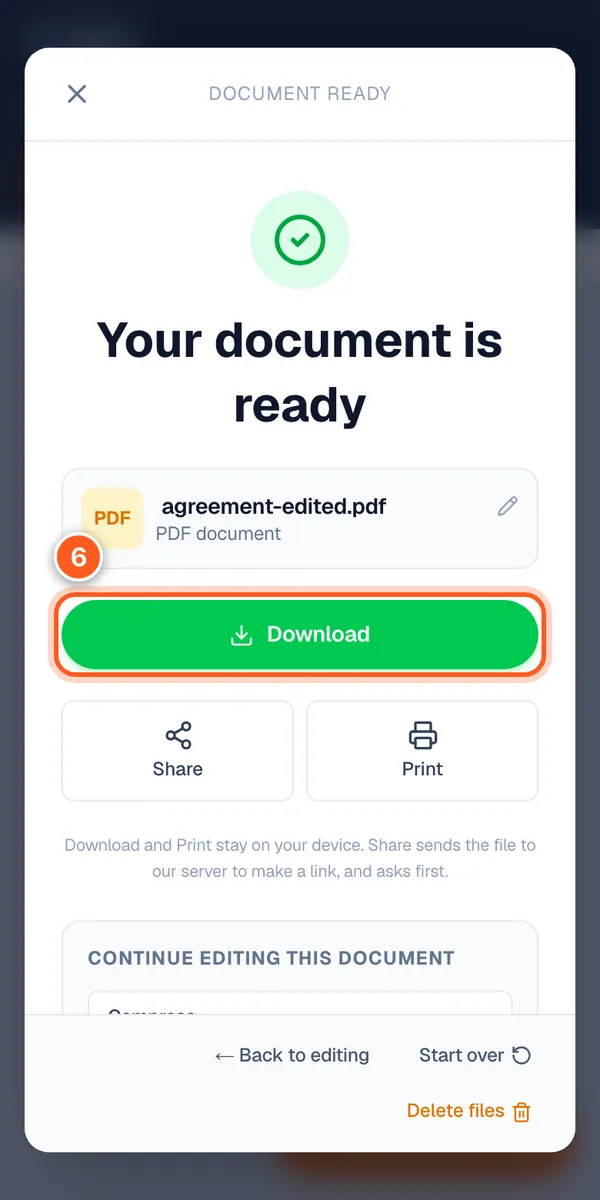
Open Safari or Chrome and go to the Sign PDF page. Tap the big box and pick your file from Files, Google Drive, or your downloads.
The file opens right in the browser tab. It stays on your phone.
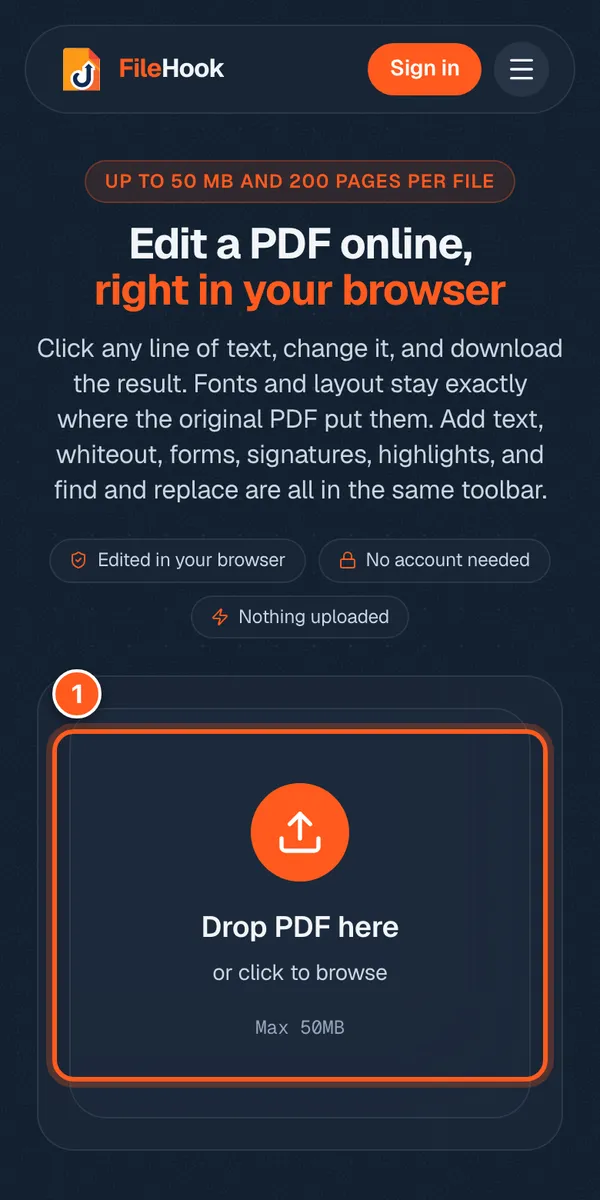
Find the pen icon (it replaces the printer)
Tap the orange Edit button. A toolbar shows up. Tap the pen icon (that is Sign), then tap New Signature.
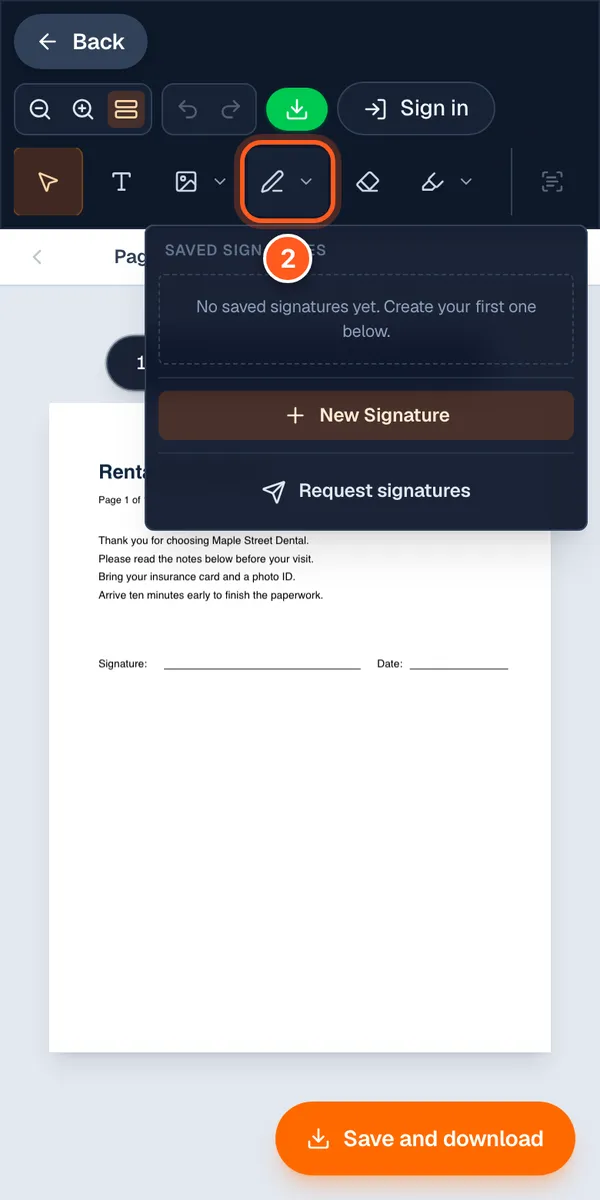
Type your name, or draw it like a real signature
Pick Type and write your name. You get six styles to choose from. Tap the one you like, then tap Save.
Want the real thing? Tap Draw and sign with your finger. Got a photo of your handwritten signature? Tap Upload.
Drop it on the line, right where the ink would go
Your signature lands on the page. Drag it onto the line. Pull a corner to make it bigger or smaller. Pinch the page to zoom in if the line is tiny.
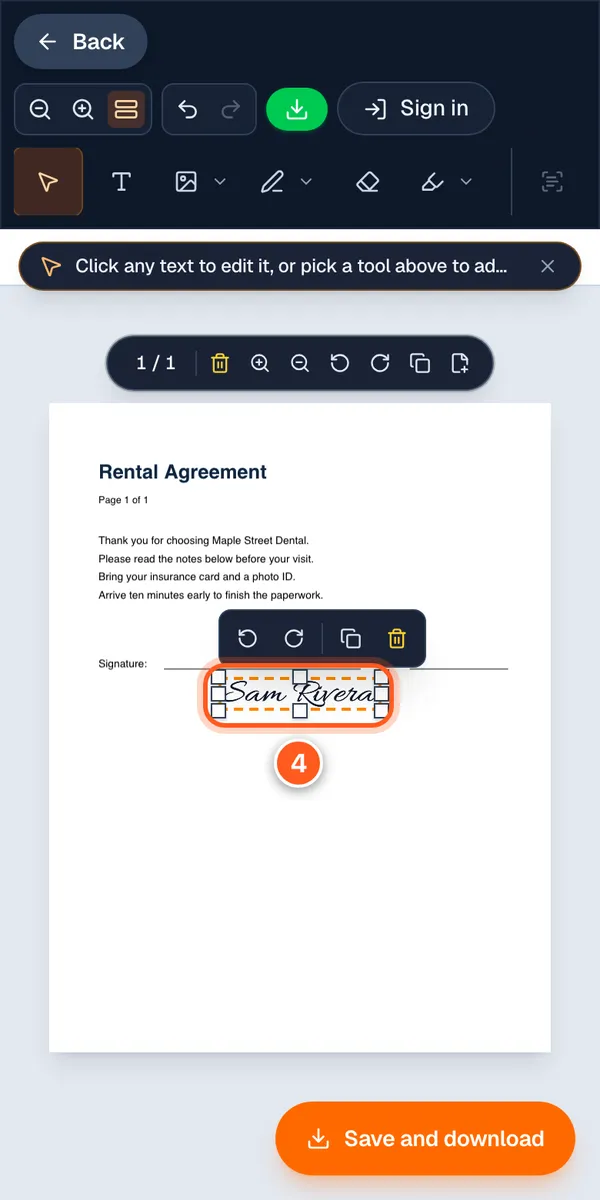
Tap Save to keep your signature on the page
Tap the orange Save and download button at the bottom.
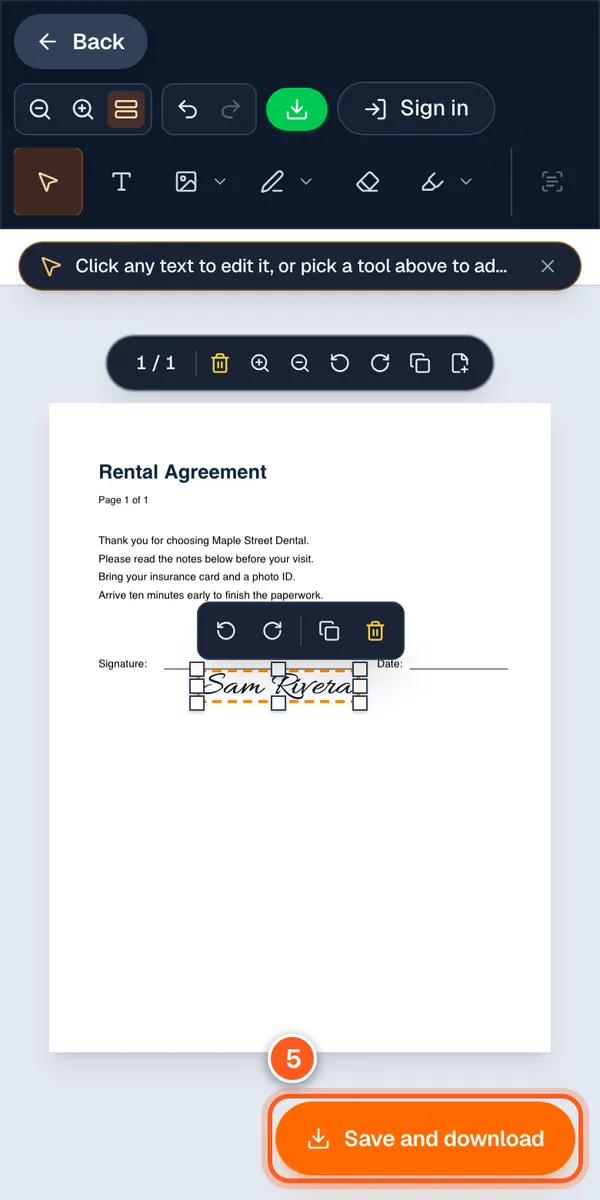
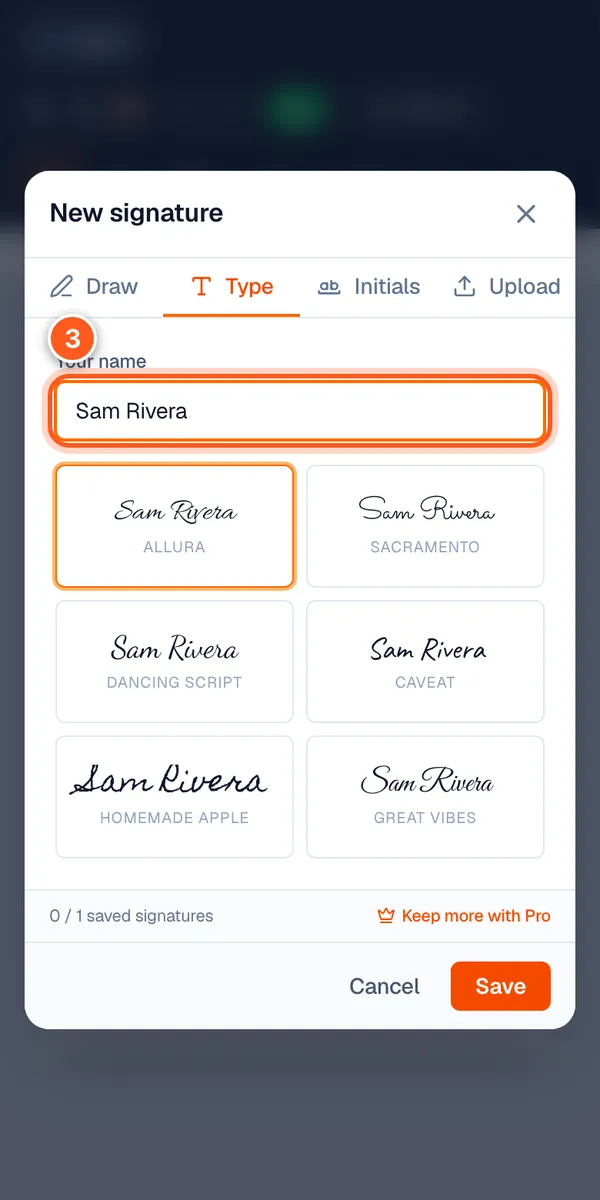
Download it and send it before the deadline
A box says your document is ready. Tap Download. The signed copy goes to your phone. Now attach it to an email or a message, just like any other file.