How do I make a scanned PDF searchable?
Ctrl+F finds nothing in your PDF. Here is why, and the fix.
Open the OCR PDF tool, drop your scan in, press Make searchable, wait for the pages to finish, then press Download searchable PDF.
It reads the picture of each page and lays invisible text on top. The page looks the same, but now you can search and copy it.
You scanned an old bill, a contract, a pile of receipts. You hit Ctrl+F and get zero results, even though the word is right there on the page. A scan is only a photo of paper, and OCR puts the words back.
3 steps and you are done
Add the scan that will not search
Go to the OCR tool. Drop your file in the box, or click to browse. It checks first if the file already has real text, and tells you if it does, so you do not waste time.

Press the button and let it read each page
You will see the file name and the page count. Press the button, then watch the page counter. The first run waits a little longer while the reading engine loads in your browser. After that it is faster.

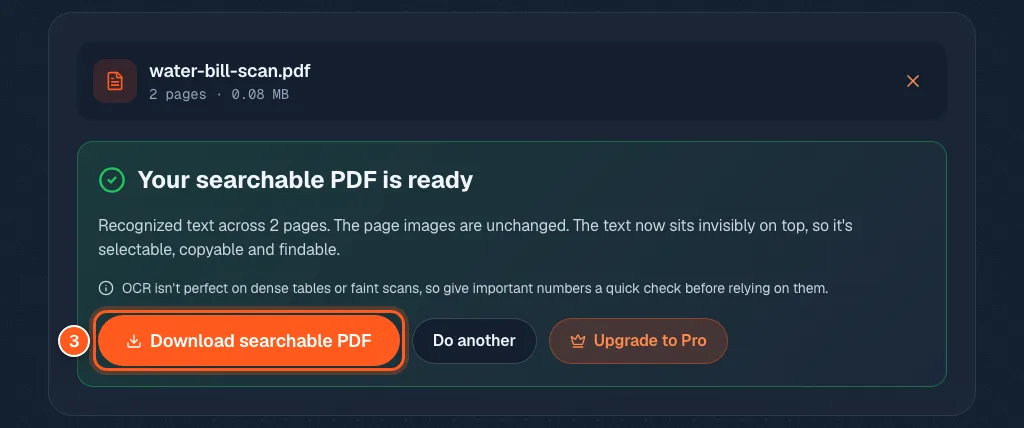
Download the copy where Ctrl+F finally works
When it says Your searchable PDF is ready, press Download searchable PDF. The file name ends in -searchable. Open it and try Ctrl+F on a word you can see on the page.